Sources
Waveform
Waveform · Audio in the patch
0:35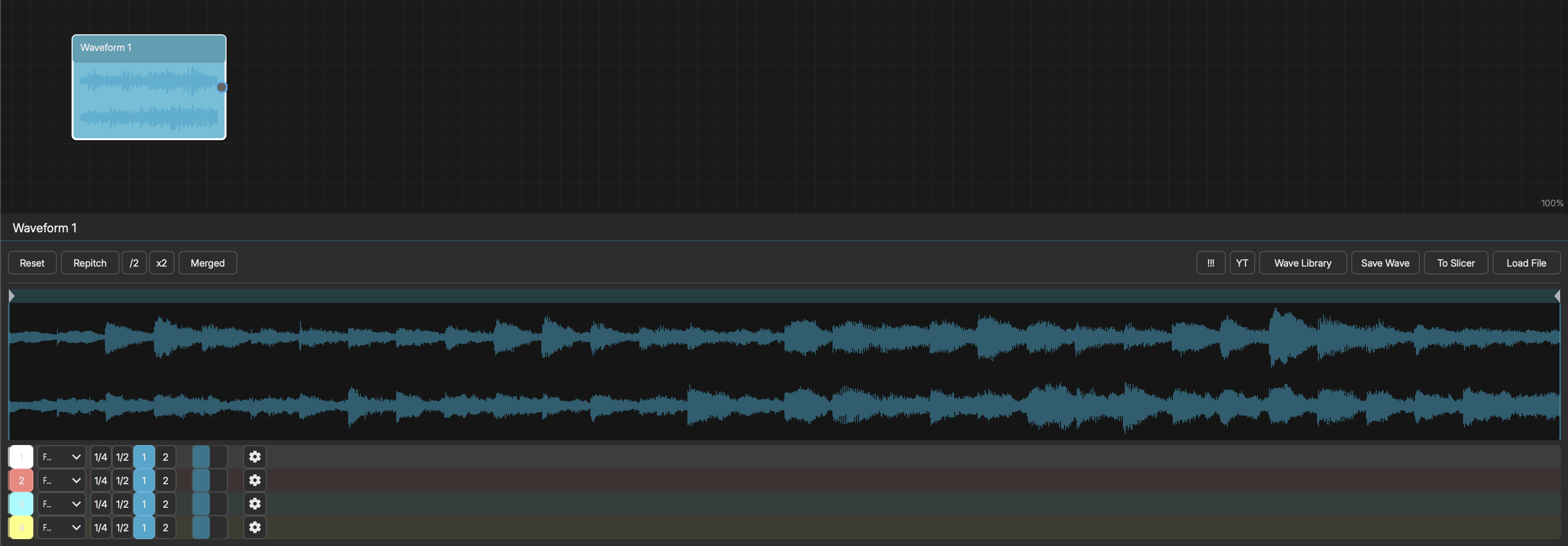
The Waveform node is an audio sample player with 4 independent playhead lanes.
LOADING AUDIO
- Drag an audio file onto the Waveform node on the canvas
- Or use the "Load File" button in the editor toolbar
- Or select from the built-in Wave Library presets
- Supported formats: WAV, AIFF, FLAC, MP3, OGG
The waveform display shows the audio file with draggable markers for regions.
4 PLAYHEAD LANES
Like the Pattern node, each Waveform has 4 independent lanes:
- Lane 1 (White) - Enabled by default
- Lane 2 (Coral)
- Lane 3 (Teal)
- Lane 4 (Yellow)
Each lane has:
- Speed Ratio - Playback speed (affects pitch in Repitch mode)
- Direction - Forward or Reverse
- Gain Scale - Volume multiplier for this lane
- Looping - Whether the lane loops or plays once
SAMPLE REGION
Defines which portion of the audio file is active:
- Sample Start - Beginning of the active region
- Sample End - End of the active region
Drag the sample region markers on the waveform display to adjust.
LOOP REGION
Within the sample region, the loop region controls what portion repeats:
- Loop Start - Beginning of the loop
- Loop End - End of the loop
All lanes share the same loop region.
TIME-STRETCH MODES
- Repitch - Changing speed also changes pitch (classic sampler behavior)
- Stretch - Maintains original pitch when changing speed (time-stretching)
ZERO-CROSSING SNAP
Loop and sample markers automatically snap to the nearest zero crossing in the audio waveform, reducing clicks and pops at loop points.
BEAT LENGTH SNAP
When loading audio, the waveform length can be snapped to clean bar lengths (1, 2, 4, 8, or 16 bars) based on the current tempo.
OUTPUT ROUTING
- Merged - All lanes output together (default)
- Per Lane - Each lane outputs separately (4 independent outputs)
SCRIBBLE (AUDIO SCRUBBER)
Scribble lets you click-drag over the waveform to scrub and capture audio, like scratching a vinyl record.
- 1Click "Scribble" in the toolbar -- button turns red and shows "Done"
- 2Click and drag on the waveform display:
- - Mouse X controls playback position in the sample
- - Mouse Y controls pitch (center = original, top = 2 octaves up, bottom = 2 octaves down)
- 1Release the mouse to stop scrubbing. Click and drag again for more gestures.
- 2Adjust the Window slider (10-500 ms) to control the chunk length -- shorter = more choppy/glitchy, longer = smoother playback
- 3Click "Done" to finalize -- the captured audio replaces the original waveform content
Multiple gestures accumulate into a single captured recording. Scribble is great for creating stuttery, pitch-mangled remixes of your samples.
AUDIO SOURCE RECORDING
If the Waveform has an audio input connection, hold the Rec button to capture live audio from the connected source.
MODULATION TARGETS
- Gain - 0.0 to 2.0