Mix, Master & Perform
Transport & Mixer
Mastering · The final signal chain
0:37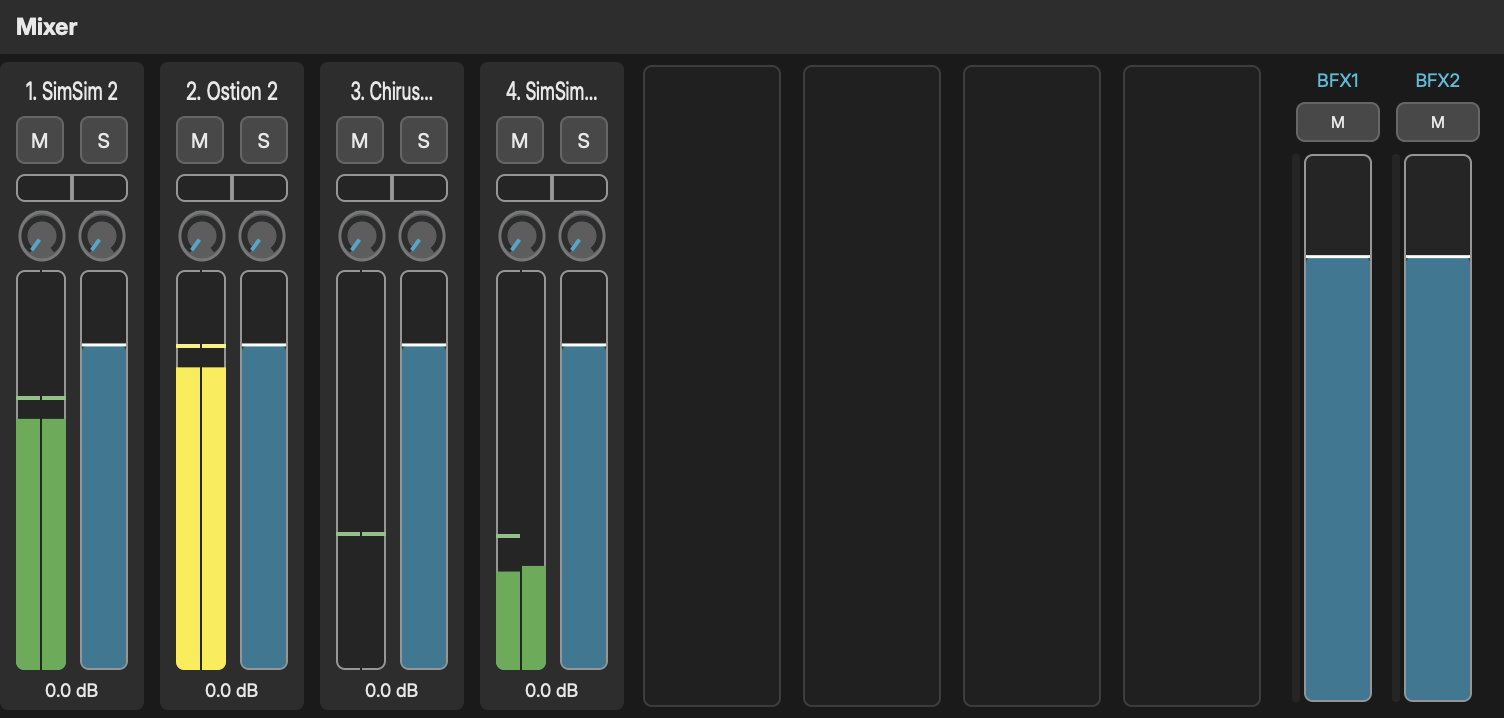
TRANSPORT CONTROLS
The transport panel sits at the bottom of the window:
- Play - Start playback (spacebar)
- Stop - Stop playback (spacebar when playing)
- Reset - Return to beat 0
- Tempo - Current BPM, displayed in the transport bar
- Position - Current playback position shown as bars:beats
- Panic - All-notes-off button, silences all active voices immediately
TAP TEMPO
Click the tap-tempo button in the transport bar rhythmically to set BPM. The algorithm averages up to 5 tap intervals for a stable reading. If you stop tapping for 2 seconds, the counter resets so your next tap sequence starts fresh.
TEMPO MODULATION
Tempo is available as a global modulation target. Route an LFO, Envelope, Step Sequencer, or Random source to "Tempo" in the Modulation Matrix to create tempo changes over time. Modulated tempo stays local and does not propagate to Ableton Link peers.
ABLETON LINK
Noemi supports Ableton Link for tempo and transport synchronization with other Link-enabled apps and devices on your network.
- Enable/Disable - Toggle Link via the transport bar Link button
- Tempo sync - When Link is active, tempo changes propagate bidirectionally
- Transport sync - Start/stop commands sync across all Link peers
When Link is active, the tempo display reflects the shared Link session tempo. Tap-tempo changes propagate to Link peers. Tempo modulation from the Modulation Matrix stays local to Noemi and does not affect Link peers.
MASTER KEY
The master key selector in the toolbar sets the global key for the project:
- Root - Select the root note (C through B)
- Scale - Select the scale type
The master key influences generators and scale quantizers throughout the project.
MIXER
Toggle the mixer panel with the Mixer toolbar button. The mixer supports up to 16 channel strips. Each channel has independent controls, even when multiple channels share the same sound source.
PER-CHANNEL CONTROLS
- VU Meters - Stereo level meters with graded color (green, yellow above -18 dB, red above -6 dB) and peak hold
- Volume - Channel volume fader with dB readout
- Pan - Horizontal stereo pan slider (-1 left to +1 right)
- Mute (M) - Silence the channel (pre-bus-send -- muting does not affect bus sends)
- Solo (S) - Solo this channel, muting all others
- BFX1 / BFX2 - Send knobs for Bus Effect 1 and 2 (see Bus Effects below)
- Track Label - Numbered label (e.g., "1. Chirusa", "2. Delay")
CHANNEL LABELS
Channel strips show numbered labels in "1. Name" format for clear identification. Double-click any label to rename it (e.g., "2. Ambience"). Custom names persist in the project file.
- 8ch / 16ch - Toggle button to switch between 8 and 16 channel slots
Right-click a volume or pan control to assign a MIDI CC for hardware control.
SPECTRUM ANALYZER
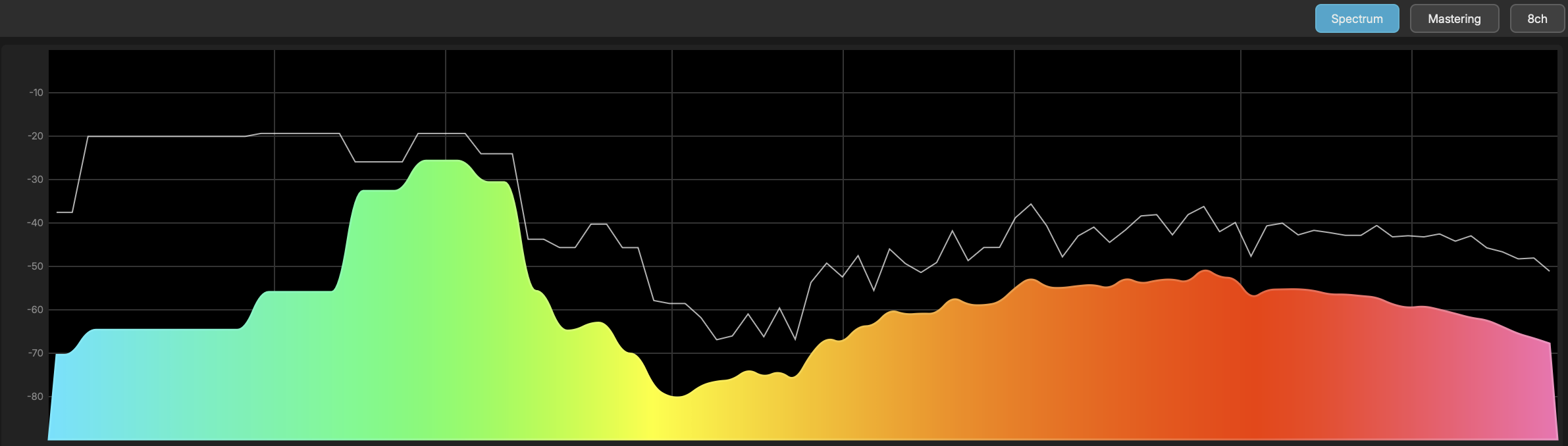
Click the Spectrum button in the mixer header to toggle a merged spectrum analyzer to the right of the channel strips. The spectrum displays 96 logarithmic frequency bands from 40 Hz to 18 kHz.
BUS EFFECTS
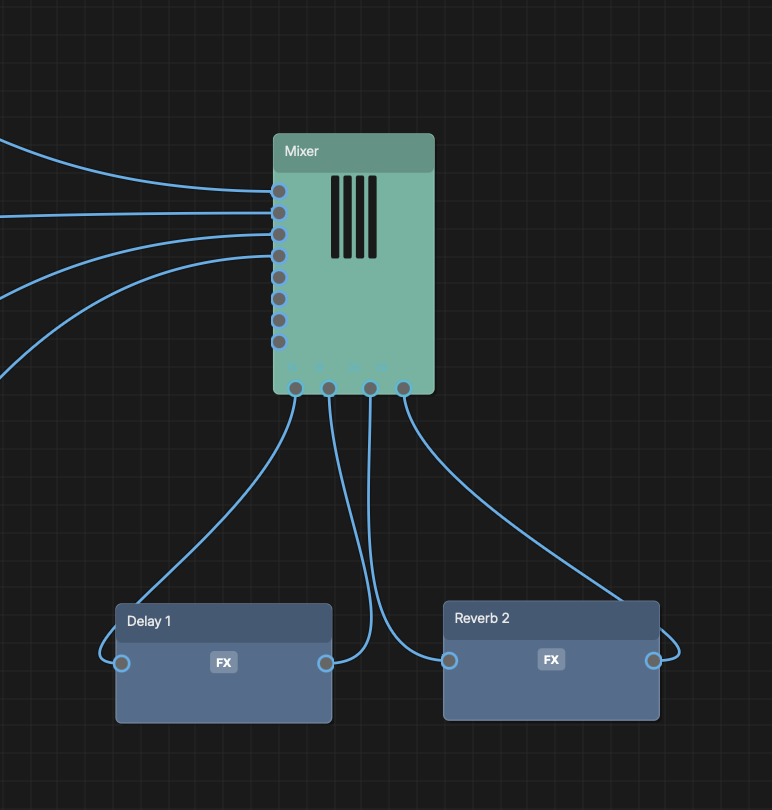
The mixer provides 2 send/return effect buses (BFX1, BFX2) for shared effects like reverb and delay.
- Bus Sends - Each channel strip has BFX1 and BFX2 send knobs (0.0 to 1.0) that control how much signal is sent to each bus
- Pre-Fader - Bus sends are pre-fader, so a muted or silenced channel can still feed its bus effects
- Bus Returns - Each bus has a return volume fader and mute button at the right side of the mixer
- Bus VU Meters - Small level indicators on each bus return strip show audio activity
CANVAS BUS ROUTING
The Mixer node on the canvas has Bus Out and Bus In ports on its bottom edge. To set up a bus effect chain:
- 1Connect Bus Out 1 to an effect node (e.g., Delay or Reverb)
- 2Connect the effect node's output to Bus In 1
- 3Adjust the BFX1 send knobs on each channel strip to taste
- 4Repeat with Bus Out 2 / Bus In 2 for a second bus effect